
What Is n8n? A Comprehensive Guide to Workflow Automation: A plain-English walkthrough of workflows, nodes, triggers, credentials, webhooks and executions, with simple examples you can try today.
 It is Monday morning. A new customer inquiry arrives. Now you must:
- Copy the details into a spreadsheet
- Tell a teammate about it
- Send the customer a reply
Doing this by hand is slow, and easy to forget. n8n lets you connect those steps once and run them automatically every time a new inquiry comes in.
The core idea is simple: turn a repeated process into a clear set of connected steps. You decide:
- What starts the work
- What information moves between steps
- What each step does
Good news for beginners:
- You don’t need to be a programmer. Most workflows are built by choosing nodes, connecting them, picking fields and testing.
- Code is available for special cases, but it is never the starting point.
- n8n doesn’t guess your business rules. It follows exactly what you build, so testing matters.
Think in one sentence: “When this happens, use this information to do these steps, then produce this result.” That sentence is the first sketch of every workflow.
What Is n8n?
n8n (say “n-eight-n”) is a workflow automation tool. You use it to connect apps and services and make them do tasks automatically. It is an open-source, low-code/no-code orchestration platform that connects apps, APIs, and databases.
It is a numeronym for “nodemation”, a blend of node (referring to its node-based visual interface and Node.js runtime) and automation. ‘8′ represents the 8 letters (“o-d-e-m-a-t-i-o”) between the first n and the last n in nodemation.
Here is an example. Say you want a Telegram message every time someone fills out a form on your website. Doing that by hand means checking the form again and again. With n8n, you build a small automation once, and it runs by itself from then on.
n8n works like digital LEGO. You do not write long programs. You place small blocks on a screen and connect them with lines. Each block does one job, such as “read a spreadsheet,” “send an email,” or “ask an AI model a question.”
n8n is also “fair-code” software. In simple terms, the source code is open for you to see, and you can run it on your own computer for free. The cloud version is a paid service. This guide uses the free self-hosted version.
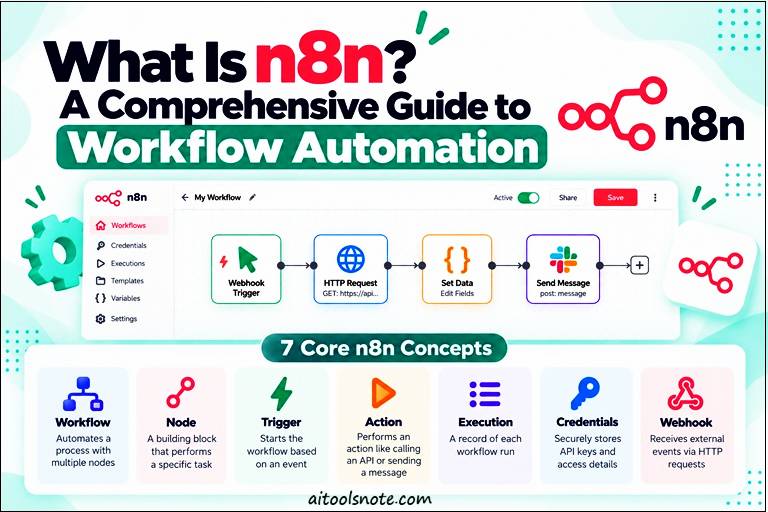
The 7 Core Concepts of n8n at a Glance
| Concept | In one line |
|---|---|
| Workflow | The complete automation |
| Node | One block that does one job |
| Trigger node | What starts the workflow |
| Action node | What the workflow does next |
| Execution | One run of a workflow |
| Credentials | Saved access to other apps |
| Webhook | A trigger that listens for outside requests |
Let’s go through each one in detail.
Workflow: One Complete Automation
A workflow is the whole automation you design in n8n. It appears on a visual canvas as a group of connected nodes.
A workflow includes:
- Its starting condition
- The tasks it performs
- Any decisions it makes
- The paths information can take
Example: A small online shop wants to respond to new orders. One workflow could:
- Start when an order arrives
- Check that payment is confirmed
- Add the order to a tracking spreadsheet
- Email the customer a confirmation
A different workflow might handle another job, such as sending a daily sales report.
Workflows can be short or long:
- Simple: a trigger plus one action
- Advanced: branches, repeated tasks for lists of items, or calls to other workflows
Tips:
- Start small. A workflow that saves a few minutes a day is a great first project.
- Use clear names. “New customer form to spreadsheet” beats “Workflow 3” every time.
Node: One Block, One Job
A node is a single block on the canvas. Each node performs one task or controls what happens next.
Nodes can:
- Start a workflow
- Read or write data
- Connect to an app
- Change values
- Filter information
- Choose between paths
Example: a contact form workflow
- Trigger node: receives the form submission
- Edit Fields node: selects or renames useful fields
- If node: checks whether the person agreed to receive updates
- Google Sheets node: adds the contact to a sheet
- Email node: sends a confirmation
How nodes connect:
- The lines between nodes show the route.
- Usually, the output of one node becomes the input of the next.
- If a node returns three items, a later node can process all three.
Remember: A node is not a whole app. It is one specific task, such as “Append Row” in a spreadsheet app, or one piece of logic, such as a condition.
Beginner tip: Ask, “What is the next single job this workflow needs to do?” Then add a node for that job. Your workflow stays easy to read and troubleshoot.
While learning, keep an eye on the input and output panels. They show exactly what information is moving through your workflow.
Trigger Node: What Starts the Workflow
A trigger node tells n8n when to start. It defines the event or condition that begins execution.
Three common trigger examples:
- Every day at 9 AM: a Schedule Trigger starts the workflow at a set time, for example to email yesterday’s sales report.
- When a form is submitted: a form or app trigger saves the response and notifies a team member.
- When I click a button: a manual start, handy for testing while you build.
Good to know:
- Beginners often call the trigger the “first node,” which is a useful shortcut.
- A trigger doesn’t always carry the data you need. A schedule trigger only says “it’s time,” so another node must fetch the latest orders.
- A form trigger usually passes the submitted fields straight to the next node.
Testing vs. production:
- While building: run manually or listen for a test event.
- When ready: publish the workflow so it runs automatically from its trigger.
Action Node: What the Workflow Does
An action node performs a task after the workflow starts. It might:
- Send an email
- Add a row to a spreadsheet
- Create a task
- Retrieve information
- Update a record
In n8n, some nodes also make decisions or reshape data, so not every node after the trigger is a pure “action.” Still, “the trigger starts, later nodes do the work” is a solid first mental model.
Example: a product demo request
- Trigger receives the request
- Action adds the person to a customer list
- Action sends a confirmation email
- Action creates a task for a salesperson
Mapping Data with Expressions
A common beginner challenge is matching the right incoming value to the right field. If an email node asks for a recipient, you map the submitted address into it.
- Pick the value from the input panel, or
- Use an expression, such as:
{{$json.email}}
In simple terms: “use the value in the current item’s email field.” Expressions can also format text or do small calculations.
Actions That Depend on Decisions
An If node can check, for instance, whether an order total is above a certain amount:
- Yes: notify a staff member about a high-value order
- No: send a routine confirmation
One workflow, different responses for different situations.
Execution: One Run of a Workflow
An execution is a single run of a workflow.
- A schedule that fires each morning creates one execution per morning.
- A form submitted twice creates two executions.
- Manual test runs are executions too.
Why execution history matters. You can open any execution and answer questions like:
- Did the workflow start?
- Which node ran last?
- What data did each node receive?
- Did it finish or fail?
Example: A workflow receives a form but fails when adding a row to a spreadsheet. The execution record shows whether the form fields were present, what the spreadsheet node received, and what error came back. That beats guessing.
Manual vs. production runs:
- Manual: started from the editor while you build or test
- Production: started automatically by a published workflow and its trigger
Practical habit: After a test run, check the final result and the output of each node in between. A workflow can finish without errors and still send the wrong value to an app.
Credentials: Saved Access to Other Apps
Credentials are saved authentication details that let n8n connect to apps and services. Depending on the service, that may be an account connection, an API key or another method.
Instead of typing a password or key into every node, you create a credential once and select it wherever needed.
Example: To add a row to Google Sheets, n8n needs permission to your Google account.
- Create or select the Google credential
- Configure the spreadsheet node to use it
- The node connects without you retyping login details
Credentials vs. data:
- Data: the customer’s name and email flowing through the workflow
- Credential: the access that lets a node write that data to an app
Keep credentials safe:
- Treat them like keys to your accounts
- Grant only the access the job needs
- Never share secret values in messages or screenshots
- Review access when a workflow is no longer needed
- If you see an authentication error, check that the credential is still valid and has the right permissions
Webhook: A Trigger That Listens
A webhook is a way for one service to tell another that something happened. In n8n, the Webhook node gives you an address (a URL or endpoint). When another app sends a request to it, the workflow starts and receives the request data.
Use a webhook when:
- The outside app has no dedicated n8n trigger
- You want to receive a custom event
Example: A website sends a request whenever a visitor submits a quote form, containing their name, email and the service they want. Your workflow can then:
- Check the information
- Save it to a customer system
- Send an acknowledgement
Test vs. production URL:
- Test URL: for building and inspecting while you develop
- Production URL: used by the live, published workflow
Working with webhook data:
- Requests can contain URL parameters, headers and a body, depending on the sender.
- Send a test request first and inspect what arrives.
- Map the fields you actually see. Don’t assume every sender uses the same names.
Security matters:
- A webhook is a way into your workflow.
- Use available authentication options where appropriate.
- Avoid exposing private information.
- Make sure the workflow only does what you intend. A public URL does not prove a request is trustworthy.
How Data Moves Between Nodes
The canvas shows the route, but the data moving along it matters just as much.
Items:
- n8n passes data as items, usually with named fields such as name, email and message.
- A workflow can pass one item or many, and nodes can process each item in turn.
Here is a simplified item:
{
  "name": "Ravi Patel",
  "email": "[email protected]",
  "message": "Please send me the pricing details."
}
Why item counts matter:
- Ten form submissions become ten items, and a later email node may act on each one.
- If an earlier step returns no items, later steps have nothing to process.
- If it returns more items than expected, an action may run more times than you intended.
Nested data:
- An address may sit inside a customer object, so the path is customer.city, not just city.
- If a mapped field looks empty, check spelling, capitalization (Email is not email) and nesting.
Decisions, Transformations and Connections
Useful workflows are rarely a straight line.
Decision nodes
- If: sends data down one of two paths
- Switch: chooses from several paths
- Merge: brings branches back together
Transformations
Transformation means reshaping data into something more useful. Examples:
- Combine first and last name
- Remove an unwanted field
- Format a date
- Split a list into separate items
Which tool to use?
- A built-in data node, when it does the job clearly
- An expression, for a small field-level change
- The Code node (JavaScript or Python), for complex cases
Golden rule: Use the simplest tool that keeps your workflow understandable. Something another person can maintain beats something clever.
Apps, Integrations and APIs
Integrations
- An integration lets n8n work with a service such as Gmail, Google Sheets or Slack.
- You pick the account, the operation (find a record, add a row, send a message) and the fields.
APIs
- An API is a documented way for software to request information or ask a service to do something.
- If n8n has a dedicated node, use it. It’s usually the easiest route.
- If not, the HTTP Request node can call any service with a REST API. It is more flexible, but you need the service’s URL, method and authentication details.
Quick comparison:
- Google Sheets node: append a row using a simple field-mapping screen
- HTTP Request node: configure URL, method, authentication and request data yourself
JSON and Binary Data
JSON
- Most data passed between nodes is stored as JSON: values under names.
- You can usually work through n8n’s visual field picker without writing JSON by hand.
- Knowing names matter helps when a field looks blank.
Binary data (files)
- Images, PDFs and spreadsheet attachments are binary data, not ordinary text fields.
- A workflow can move, save, convert or extract information from files.
- Example: receive a PDF invoice, extract fields into JSON, send details to another app.
Quick distinction: The file name invoice.pdf is not the invoice itself. Your workflow must carry the file’s binary data if a later node needs to read or upload it.
Polling vs. Webhook Triggers
| Polling trigger | Webhook trigger | |
|---|---|---|
| How it works | Checks a service at set intervals | Waits for the service to send a request |
| Timing | Notices changes on the next check | Starts when the request arrives |
| Setup | Usually just connect the app | The other service must send to the right URL |
| Example | Email trigger checking for new messages | Website posting a form submission |
If an app has a reliable built-in trigger for your event, that is often simpler than setting up a webhook.
Branches, Loops, Waits and Sub-Workflows
- Branches: send items down different paths. Example: urgent support messages go to a priority channel, others to a normal queue.
- Loops: repeat a step for each item in a list.
- Wait: pause a workflow and resume later, useful for delays or late responses.
- Merge: rejoin separate paths.
- Sub-workflows: move a reusable part into its own workflow and call it from others. For example, one shared sub-workflow can format and log customer details for several automations.
Advice: Learn trigger, action and data mapping first. Use sub-workflows once you can clearly spot a reusable piece.
Build and Test Your First Workflow
Step 0: Describe it in plain language.
“When a new inquiry arrives, save it in a spreadsheet and send the person a confirmation.”
A typical build:
- Trigger: receive a test form submission or webhook request
- Check: confirm the email field is present
- Save: add name, email and message to a spreadsheet
- Respond: send a confirmation email
Testing tips:
- Add one node at a time and run a test after each meaningful change.
- Map only the fields each node needs.
- Test a normal case and a tricky one, such as a missing optional field.
- Pin sample data in the editor (where available) so you don’t have to repeat the original event.
Pre-publish checklist:
- Does the trigger fire when expected?
- Does each node receive the right data?
- Are credentials connected?
- Does the workflow take the right branch?
- What happens if a node fails?
Publish only when the result is clear and you’re ready for it to run on its own.
Common Beginner Problems and Fixes
A field is blank
- Open the node’s input data and check the exact field path.
- Confirm the previous node produced it and the name matches.
- If nested, include the parent object.
“Authentication failed”
- Check which credential the node uses.
- Reconnect or update it, and confirm the account has permission.
- Don’t paste secret keys into ordinary text fields unless the docs say to.
Works manually but not automatically
- A manual run is not the same as a live trigger.
- Confirm the workflow is published and the trigger is set for the right event or schedule.
- For webhooks, make sure the sender uses the production URL.
A later node doesn’t run
- Check the execution path and the previous node’s output.
- A condition may have sent the item down another branch, or no items came through.
An execution fails unexpectedly
- Find the failed node, read its message and inspect its input.
- Typical causes: wrong settings, missing values, expired credentials, an unavailable service.
- For stronger monitoring, set up a separate error workflow to notify you of failures.
Cloud or Self-Hosted?
n8n comes in two flavors:
- Managed cloud: the provider handles most platform operation.
- Self-hosted: your organization manages its own environment, configuration and maintenance.
The workflow model is the same either way: triggers, nodes, data and executions.
Don’t decide hosting before you learn the concepts. If you later handle sensitive data, think about who can access it, how credentials are protected and how failures will be noticed.
Also check:
How to install n8n locally using Docker Desktop
How to Set Up n8n Webhooks Locally on Windows 11/10
Key Takeaways
n8n gets much less intimidating when you ask five questions:
- What event starts the workflow?
- Which nodes do the required jobs?
- What data does each node receive and return?
- Which credentials let it reach other services?
- How will I check that a run succeeded?
Remember:
- A workflow is the full automation.
- A node is one step.
- A trigger starts an automatic run; action nodes do the work.
- Credentials give nodes access to other apps.
- A webhook is a trigger that receives an outside request.
- An execution is one run you can inspect.
Master these ideas and you have the foundation for workflows that are useful, understandable and easy to troubleshoot.
(FAQs) Frequently Asked Questions
What is n8n used for?
n8n is a workflow automation tool. It connects apps and services so repetitive tasks, like saving form data to a spreadsheet and emailing a confirmation, run automatically.
Do I need to know coding to use n8n?
No. You can build many workflows by choosing nodes, connecting them and mapping fields. Code is optional, for special cases.
What is a node in n8n?
A node is one block on the canvas that does one job, such as receiving a trigger, sending an email or checking a condition.
What is the difference between a trigger and an action node?
A trigger starts the workflow. Action nodes carry out tasks afterward, such as sending messages or updating records.
What is a webhook in n8n?
A webhook is a trigger with a URL that other apps can call. When a request arrives, the workflow starts with the request data.
What is an execution in n8n?
An execution is one run of a workflow. You can inspect it to see what each node received and where a failure happened.
Is n8n cloud or self-hosted?
Both. The cloud option is managed for you, while self-hosting means you maintain your own environment. The workflow concepts are identical.