
How to use NotebookLM: A Comprehensive Guide
In the ever-evolving scenery of digital tools, information overload is a constant challenge. Researchers, writers, students, and professionals alike are continually seeking methods to streamline their processes, synthesize information more effectively, and ultimately, produce higher-quality work with greater efficiency. Enter NotebookLM, a powerful and intuitive platform designed to act as your ultimate research assistant and knowledge management hub. Whether you’re a complete beginner curious about its capabilities or a seasoned user looking to optimize your existing workflow, this comprehensive guide will prepare you with the knowledge and practical strategies to utilize NotebookLM’s full potential.
This article explores the core functionalities of NotebookLM, from initial setup and source integration to advanced workflow strategies. We’ll explore how to get started, clarify the various source types it accepts, and provide step-by-step guides for practical applications, ensuring you can leverage this tool for everything from casual learning to intensive academic research. By the end of this guide, you’ll not only understand how to use NotebookLM but also why it will become an essential part of your digital portfolio.
How is NotebookLM different than other Models?
What truly sets NotebookLM apart is its specialization: it is a “closed-loop” model, intentionally constrained to only use the sources you provide. This grounded approach ensures its responses are accurate, reliable, and verifiable with clear, clickable compliments. This makes it a crucial tool for students, researchers, and professionals who require verifiable answers and want to avoid the “hallucinations” that can discomfort other general-purpose models.
Getting Started with NotebookLM: Your First Steps to Smarter Research
Initiating your NotebookLM journey is a straightforward process, designed to be user-friendly even for those new to AI-powered research tools. This section will walk you through the initial setup, explain the fundamental interface elements, and provide essential tips to jumpstart your experience.
Accessing NotebookLM:
NotebookLM is typically accessed through your Google account. A simple search for “NotebookLM” will lead you to the official platform. You can also directly visit through the official link of NotebookLM. Upon your first visit, you might be prompted to sign in with your Google credentials. This integration ensures seamless access to your Google Drive files and other Google services, which is a significant advantage for source management.
Understanding the Interface:
Once logged in, you’ll be greeted by the main NotebookLM interface. While it may appear simple, each element serves a crucial function.
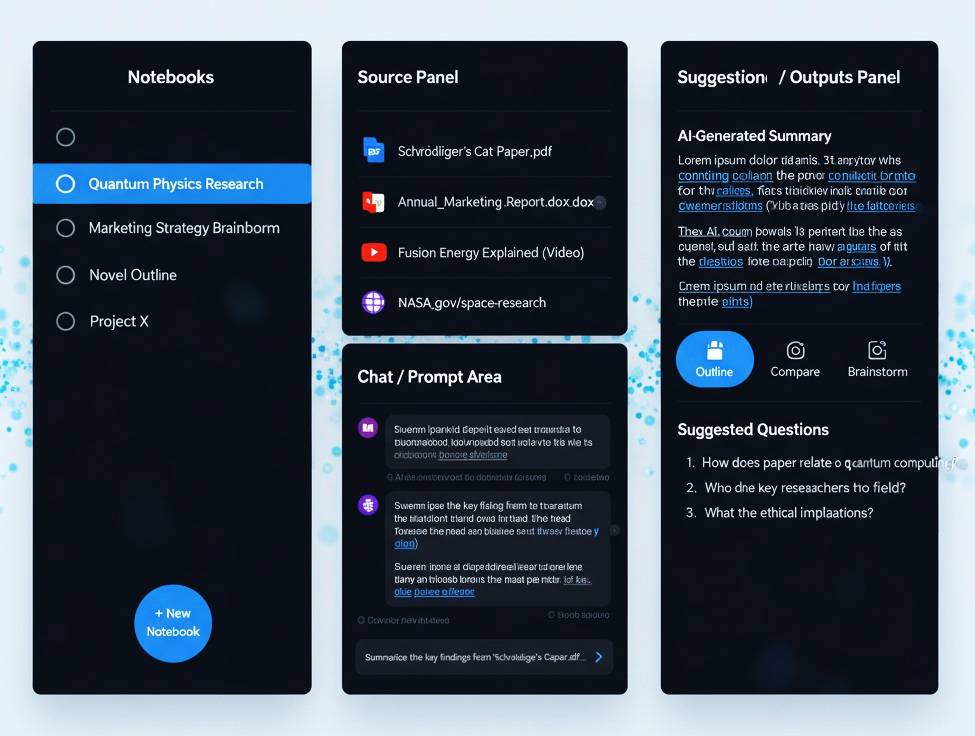
- Notebooks Panel: On the left-hand side, you’ll typically find a panel listing your existing notebooks. Think of notebooks as individual projects or containers for specific research topics. You can create new notebooks here and switch between them effortlessly.
- Source Panel: When you open a notebook, this panel, usually on the left or in a dedicated section, displays all the sources you’ve added to that particular notebook. Each source will be clearly labeled.
- Chat/Prompt Area: This is the interactive heart of NotebookLM. Here, you can ask questions, request summaries, brainstorm ideas, and interact directly with your sources. It often resembles a chat interface, making it feel conversational and intuitive.
- Suggestions/Outputs Panel: To the right or below the chat area, you’ll see the AI’s responses, summaries, generated content, and suggested follow-up questions. This is where you’ll review and interact with the information NotebookLM provides.
Creating Your First Notebook:
To begin, you’ll need to create a new notebook. Look for a “New Notebook” button or a similar prompt within the notebooks panel. Give your notebook a descriptive name that reflects its purpose (e.g., “Quantum Physics Research,” “Marketing Strategy Brainstorm,” “Novel Outline”). This organization is key to managing multiple projects effectively.
Beginner Tips for Success:
- Start Small: Don’t feel overwhelmed by trying to upload all your research at once. Begin with a single document or a few relevant links to get a feel for how NotebookLM processes information.
- Ask Clear Questions: While NotebookLM is intelligent, precise questions yield more precise answers. Instead of “Tell me about this,” try “Summarize the key arguments from this paper on climate change.”
- Experiment with Prompts: Don’t be afraid to experiment with different types of prompts. Ask for summaries, outlines, comparisons, pros and cons, or even creative writing based on your sources.
- Utilize Follow-Up Questions: NotebookLM often provides suggested follow-up questions. These are excellent prompts to deepen your understanding and explore related concepts within your sources.
A Visual Overview:
Here’s a conceptual diagram illustrating the basic layout of NotebookLM:
Adding Sources to NotebookLM: Fueling Your Research Engine
The true power of NotebookLM lies in its ability to ingest, process, and understand a diverse range of information sources. This section details the types of files and links you can upload and provides guidance on effectively managing your source material.
Supported Source Types:
NotebookLM is designed to be versatile, supporting common file formats and web content. This flexibility means you can consolidate virtually all your research materials into a single workspace.
- PDFs (Portable Document Format): One of the most common formats for academic papers, reports, and e-books. NotebookLM can read and extract information from your PDF documents.
- Google Docs: Seamless integration with Google Docs is a major advantage. You can directly link your Google Docs, allowing NotebookLM to analyze your written drafts, notes, or collaborative documents.
- YouTube Links: A game-changer for learning from video content. By providing a YouTube link, NotebookLM can often transcribe the video (or use existing captions) and allow you to query its content as if it were a text document. This is invaluable for lectures, tutorials, and interviews.
- Website Links/URLs: Simply paste a URL from an article, blog post, news report, or any other web page, and NotebookLM will process its content. This is perfect for gathering information from online resources without manually copying and pasting.
- Text Files (and potentially other document formats): While PDFs and Google Docs are explicitly supported, NotebookLM may also be able to process plain text files (.txt) and potentially other common document formats like Microsoft Word documents (.docx) if they are converted or uploaded through Google Drive.
How to Add Sources:
Adding sources is intuitive. Within your open notebook, look for an “Add Source,” “Upload,” or a similar button (often represented by a plus icon or a document icon).
- For local files (PDFs): You’ll typically be prompted to browse your computer and select the file.
- For Google Docs: You’ll likely see an option to “Add from Google Drive,” which will open a selector allowing you to choose your desired document.
- For YouTube and Website Links: There will be a dedicated field where you can paste the URL.
Source Limits and Best Practices:
While NotebookLM is powerful, there are practical considerations regarding the quantity of sources and their individual sizes.
- Notebook Limits: The exact number of sources a single notebook can handle can vary based on the platform’s current capabilities and the complexity/length of the sources. While there isn’t usually a hard, low limit, it’s wise to consider the “processing load.” Hundreds of extremely long documents might slow down response times.
- Individual Source Size: Very large PDFs or incredibly lengthy web pages might take longer to process initially. Be mindful of extremely voluminous single documents.
- Quality Over Quantity: Focus on adding relevant and high-quality sources rather than simply dumping everything you have. A curated selection will lead to more focused and accurate AI interactions.
- Organize and Group: If you have a vast amount of research on a broad topic, consider creating multiple notebooks for sub-topics. For example, instead of one “Climate Change” notebook, you might have “Climate Change: Policy,” “Climate Change: Scientific Basis,” and “Climate Change: Economic Impact.”
- Verify Processing: After adding a source, give NotebookLM a moment to process it. You’ll often see an indicator that it’s “indexing” or “processing” the document. Once complete, you can begin querying.
Visualizing Source Integration:
 Here’s an example of how various sources might appear within a NotebookLM interface once added:
NotebookLM truly shines when integrated into specific workflows. Its ability to quickly synthesize information, generate ideas, and assist with writing tasks makes it an invaluable asset across numerous domains. The following section will provide detailed, step-by-step guides for common applications.
Let’s take an example of writing a research paper/thesis/Dessertation with the help of NotebookLM.
The term “dissertation” can sometimes be used for master’s level work in some countries, though in the United States, it is primarily associated with doctoral studies.A dissertation is a formal, lengthy academic paper based on original research that serves as a major requirement for earning a doctoral degree, typically a PhD. It demonstrates a student’s advanced knowledge, independent research skills, and ability to contribute new information to their academic field.
Workflow Example: Using NotebookLM for Research Paper/Thesis/Dissertation Writing
Writing a thesis, research paper or dissertation is a demanding process requiring extensive research, critical analysis, and structured argumentation. NotebookLM can significantly refine the burden by acting as your intelligent research assistant.
Goal: Efficiently manage vast research materials, identify key arguments, synthesize literature, and generate outlines for a thesis.
Step-by-Step Guide:
-
Create a Dedicated Notebook:
- Start by creating a new notebook for your thesis (e.g., “PhD Thesis – Topic Name”).
- Tip: Consider sub-notebooks for different chapters or sections if your project is exceptionally large.
-
Upload All Research Materials:
- PDFs: Upload all relevant academic papers, journal articles, books (if you have digital copies), and conference proceedings.
- Google Docs: Include your research notes, preliminary outlines, literature review drafts, and even raw data analyses if they contain textual insights.
- Website Links: Add URLs to key institutional reports, relevant online databases, or foundational articles not available as PDFs/docs.
- Tip: Ensure all documents are properly processed by NotebookLM before proceeding.
-
Literature Review & Synthesis:
- Identify Key Arguments: Ask NotebookLM: “What are the main arguments presented in [Author X’s] paper on [Topic Y]?” or “Summarize the findings of the five most relevant papers on [Specific Sub-topic].”
- Compare and Contrast: Use prompts like: “Compare and contrast the methodologies used by [Author A] and [Author B] in their research on [Topic].”
- Identify Gaps: Ask: “Based on these sources, what are the current gaps in the literature regarding [Your Research Question]?” or “Are there any contradictions or unresolved debates among these scholars?”

-
Outline Generation:
- Once you have a good grasp of the literature, ask NotebookLM to help structure your thesis.
- Prompt: “Generate a detailed outline for a thesis on [Your Thesis Topic], including sections for introduction, literature review, methodology, results, discussion, and conclusion, drawing insights from all uploaded sources.”
- Refine: Ask follow-up questions to expand specific sections of the outline. “Elaborate on potential sub-sections for the literature review concerning [Specific Theory].”
-
Drafting & Content Generation (Assisted):
- Section Summaries: “Summarize the key findings from [Source X] that are relevant to my methodology chapter.”
- Brainstorming: “Brainstorm potential research questions based on the identified gaps in the literature.”
- Argument Development: “Help me formulate an argument for why [Theory A] is more suitable than [Theory B] for analyzing [Phenomenon Z], referencing arguments from [Source C] and [Source D].”
-
Citation & Referencing (Crucial):
- While NotebookLM doesn’t auto-generate citations in specific styles, its ability to point to the source material for its responses is invaluable. Always double-check and use a dedicated citation manager (e.g., Zotero, Mendeley) for accurate referencing. NotebookLM helps you find the information; you are responsible for accurate attribution.
-
Iteration and Refinement:
- Continuously interact with NotebookLM to refine your arguments, clarify concepts, and ensure consistency across your thesis.

What NotebookLM Can Do: Capabilities & Specialization
While the core of NotebookLM lies in its ability to interact with your sources, it is packed with powerful features that go far beyond a simple chatbot. Its specialization is what sets it apart from other general-purpose large language models (LLMs) like ChatGPT or Gemini.
Core Capabilities of NotebookLM
NotebookLM’s functionality is designed to augment your research and writing process, making it your ultimate thinking partner.
- Deep Source Analysis and Synthesis: This is NotebookLM’s primary function. It can ingest and process large volumes of information from multiple sources simultaneously.
- Summarization: Instantly generate summaries of single documents or a collection of sources.
- Topic Extraction: Identify and list key themes, arguments, and topics across your uploaded materials.
- Cross-Referencing: Ask questions that require information from several different documents, and NotebookLM will synthesize the answer, citing each source.
- Interactive Q&A: The chat interface allows you to ask a wide range of questions about your sources.
- Fact-Finding: Quickly find specific details, dates, or names within your documents.
- Clarification: Ask NotebookLM to explain complex concepts in simpler terms, using only your sources as a guide.
- Hypothesis Testing: Challenge the AI with a prompt like “Does this paper support the theory of X?” and receive a grounded response.
- Content Generation & Formatting: NotebookLM can reformat your source material into a variety of useful documents and formats.
- Automated Outlines: Create a structured outline for a report or paper based on your sources.
- Briefing Documents: Generate concise briefings or study guides from a large set of notes.
- Flashcards & Quizzes: The tool can turn key information from your sources into interactive study aids to help with recall and comprehension.
- New Content Formats: Explore options like “Blog Post,” “Learning Guide,” or even “Critique” to reshape your information for different purposes.
- Innovative “Audio Overviews”: A standout feature that transforms your static sources into dynamic, podcast-like audio.
- Deep Dive: Listen to an AI-generated discussion of your sources, perfect for learning on the go.
- Debate Format: Have two AI hosts discuss opposing viewpoints on a topic found within your documents.
What Sets NotebookLM Apart from Other Models?
The distinction between NotebookLM and a general-purpose chatbot is not just a matter of features; it’s a difference in philosophy.
- 1. Grounded in Your Sources (The “Closed-Loop” Advantage):
- Specialization: Unlike models like ChatGPT or Gemini that draw from their vast, pre-trained knowledge bases, NotebookLM is intentionally “closed-loop.” It only uses the information you provide it.
- Accuracy & Reliability: This grounded approach drastically reduces the problem of “hallucinations” (the AI making up facts). Every answer you receive from NotebookLM is traceable and verifiable against the original source.
- Citation Confidence: Every response is linked with a citation number that, when clicked, takes you directly to the exact passage in the original document. This feature is invaluable for academic work, legal analysis, or any task where source verification is critical.
- 2. Designed for Deep, Focused Work:
- Research Specialist: While a general-purpose chatbot is a Swiss Army knife, NotebookLM is a specialized scalpel. It is built for a singular purpose: helping you deeply understand and synthesize your own information.
- Knowledge Management: It serves as a personal knowledge base, allowing you to organize hundreds of documents within a single project and have an intelligent assistant for all of them. This is a key difference from chatbots that are designed for shorter, session-based conversations.
- 3. Purpose-Built Features:
- Direct Integration: Its seamless connection with Google Drive, PDFs, and web links makes the ingestion process effortless, saving you from manual copy-pasting.
- Long-Term Memory: NotebookLM’s “notebook” structure means your sources and chat history are saved and persist over time, allowing you to return to a project weeks or months later without losing context. This is a core feature, whereas in many general chatbots, long-term memory is an add-on or a less reliable feature.
Conclusion
In conclusion, NotebookLM is far more than a simple AI chatbot; it is a purpose, built knowledge management and research assistant. Its core capabilities, from deep source analysis and synthesis to creating customized reports and study guides, are designed to transform how you interact with your information. Ultimately, NotebookLM empowers you to turn a mountain of disparate information into a structured, searchable, and intelligent knowledge base, fundamentally enhancing your ability to learn, create, and innovate.
You may also go through other articles on various AI models/tools to get their insights.
You may like to read:
How to Build an AI Research Workflow Using ChatGPT and NotebookLM (2026)